Review: ASUS ROG STRIX XG129C
 Matthew Powell
18 Aug 2026
Matthew Powell
18 Aug 2026
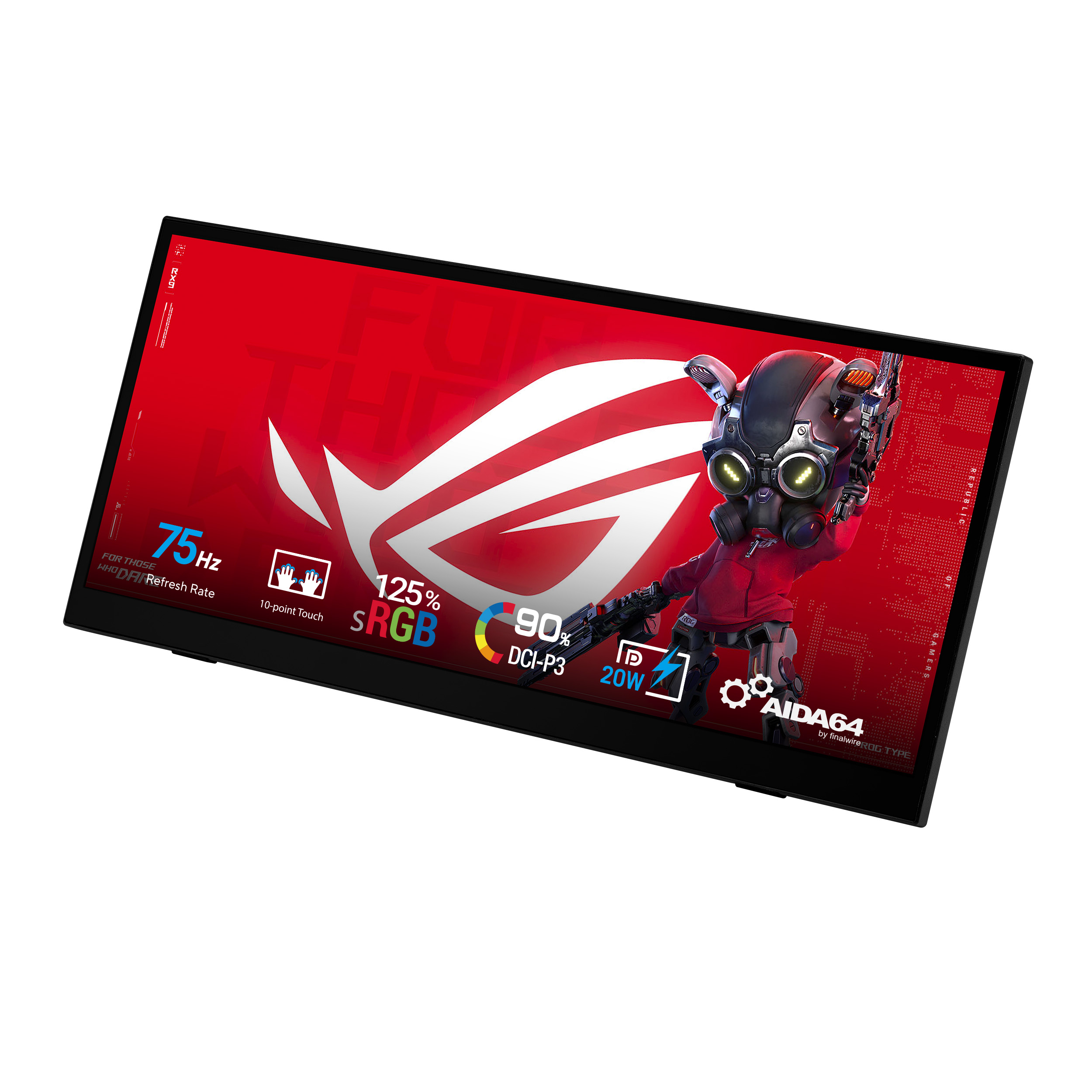
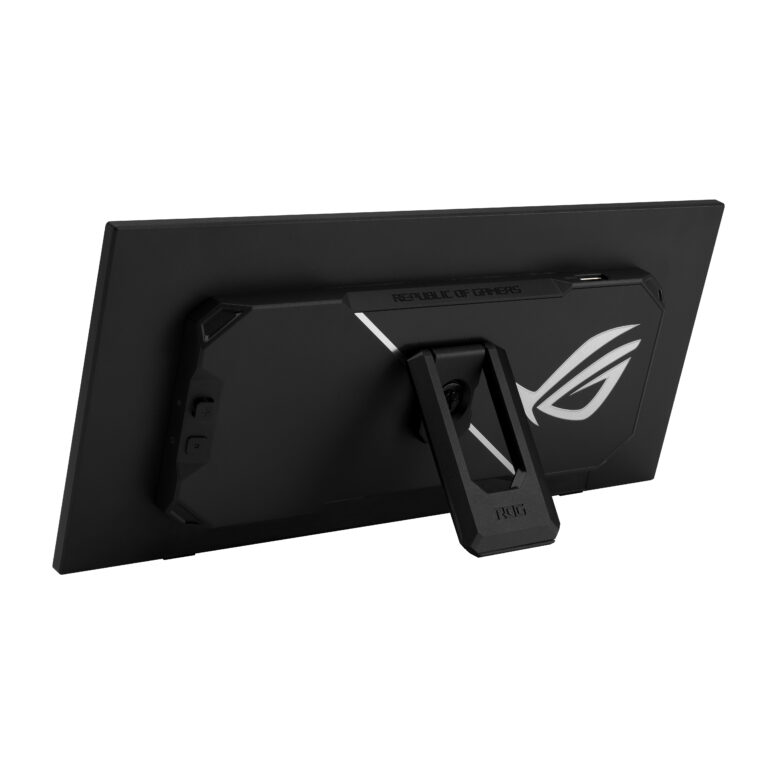
The XG129C is possibly the strangest monitor I have ever seen. It’s a 12.3-inch diagonal screen, at a whopping 24:9 aspect ratio. In other words, it’s extremely wide and not all that tall — about 4.5 inches. It sits squat on the desk, with a kickstand-style support on the back holding it up. I tested it in conjunction with the XG34WMCDMS widescreen gaming monitor, and it fits snugly directly underneath.
ASUS describes it as a “secondary” monitor. Not a “second” monitor, mind you. The odd dimensions of this screen limit its utility as an actual display. What it’s meant to do — and what it does quite well — is supplement your primary display to free up some space for controls or system monitoring that would otherwise cramp your gaming experience.
For instance, if you’re a gaming streamer, you could allocate the video feed and comments to the XG129C so they don’t take up space on the main display. Or you can simply move some screen elements to the second screen to maximise how much of the world you can see.
For non-gamers, the XG129C is about the right size and dimensions to stow some Photoshop toolbars, or a graphic equaliser in your audio editing setup. In a daily productivity setting, you could use the XG129C for your Discord or Slack chats, video calls or other shortcuts, all without cluttering your workspace. The possible use cases are myriad.
What ASUS mainly promotes is its integration with AIDA64 Extreme, the leading Windows system information, diagnostic and benchmarking tool. Serious performance freaks can thus use AIDA64 Extreme to optimise the performance of their kit in real time without having to sacrifice space on the main display.
Perhaps its cleverest feature is that it is a touchscreen capable of ten-point multitouch (depending on how you connect it to your PC). In other words, you can adjust settings on AIDA64 Extreme directly, without having to mouse over. Or if you’re using it to house an equaliser like the audio editing example above, you can adjust sliders simply by touching them.
Stacked from 5 images. Method=B (R=1,S=1)
It connects via USB-C or HDMI 1.2, and can either draw power from your PC or from its own power supply (the latter is required if you want to use touch screen features). How you connect it affects the functionality you can expect from it, and different PC users will have different experiences there. If your PC can send video, data and power to the XG129C simultaneously, you’re in luck. However, some users might have to use the HDMI for video, USB-for power, and the other USB-C for touch data. That end up being a lot of cables for such a little display.
Incidentally, Mac users need not apply. Despite some quite determined effort, I was unable to get a MacBook Air to support this screen in any useful way. It’s not a major drawback, since ASUS is hardly aiming this at the Mac market and macOS doesn’t natively support touchscreens anyway, but it’s worth noting just in case.
For the tasks for which it is designed, it performed admirably in my testing. The display is clear and bright, with good contrast. Touch response is quick, though power users might find it a little laggy (this might be a result of the screen’s relatively low 75Hz refresh rate). For my purposes, it was good enough.
Like other ASUS displays, you adjust its various settings using a joystick located behind the lower bezel. If, like me, you are using the inbuilt kickstand to mount the display directly on your desk, this means physically picking it up to change brightness or video source. Thankfully, once the on screen menu is displayed, you can also change settings using the touchscreen, which is nice.
The biggest barrier to saying this is a must-have is its price. At around $300 retail, it’s about the same price as a reasonably good 1440p display with a normal aspect ratio that could fit even more stuff on screen. It’s definitely a cool thing, but it’s not — as mentioned earlier — a second display.
If you want to have a bit of extra real estate for some side bits and pieces — chats, toolbars, system monitoring — and touchscreen capability is important to you, the XG129C is a very nice little device. But it’s not essential.
Rating
3/5
Pros
- Compact size, fits nicely on the desk alongside a primary monitor
- Touchscreen capability could be useful for many users
Cons
- Not really useful for anything except toolbars and accessories
- For the same money you could get a pretty good full-size monitor